mirror of
https://github.com/leonvanzyl/autocoder.git
synced 2026-01-30 14:22:04 +00:00

324 lines
9.8 KiB
Markdown
324 lines
9.8 KiB
Markdown
# Autonomous Coding Agent
|
|
|
|
A long-running autonomous coding agent powered by the Claude Agent SDK. This tool can build complete applications over multiple sessions using a two-agent pattern (initializer + coding agent). Includes a React-based UI for monitoring progress in real-time.
|
|
|
|
## Video Walkthrough
|
|
|
|
[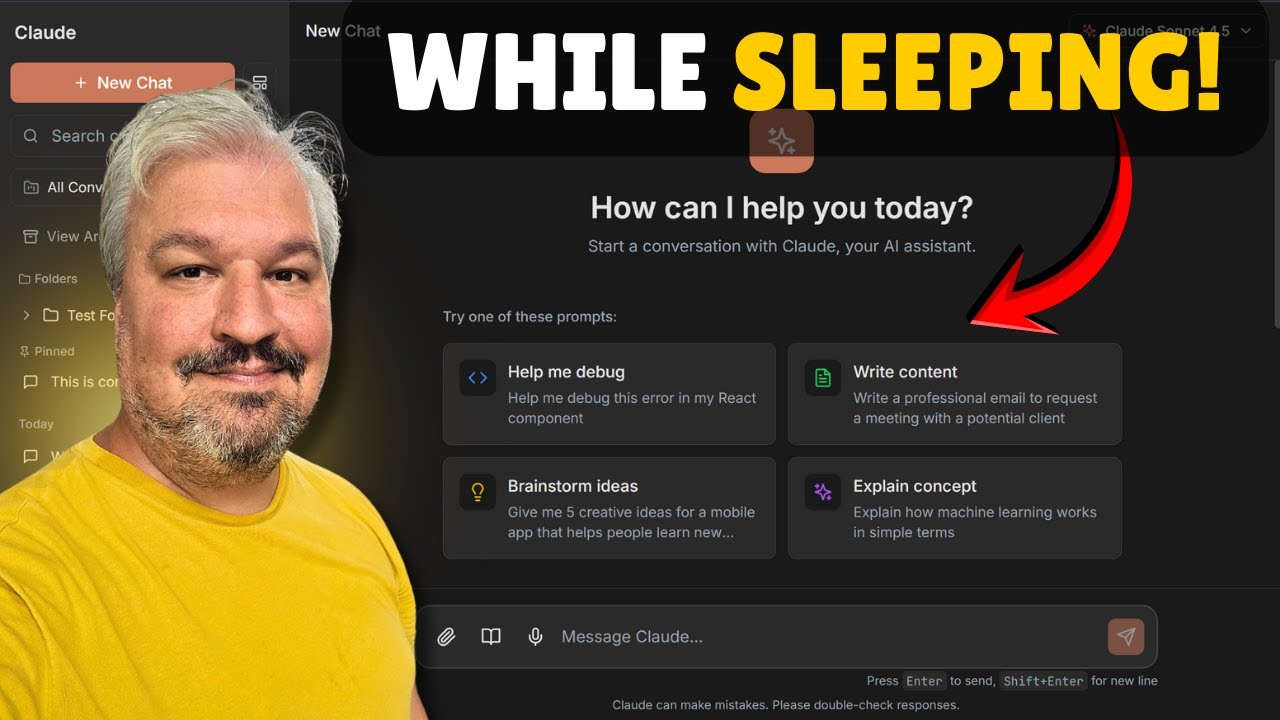](https://youtu.be/YW09hhnVqNM)
|
|
|
|
> **[Watch the setup and usage guide →](https://youtu.be/YW09hhnVqNM)**
|
|
|
|
---
|
|
|
|
## Prerequisites
|
|
|
|
### Claude Code CLI (Required)
|
|
|
|
This project requires the Claude Code CLI to be installed. Install it using one of these methods:
|
|
|
|
**macOS / Linux:**
|
|
```bash
|
|
curl -fsSL https://claude.ai/install.sh | bash
|
|
```
|
|
|
|
**Windows (PowerShell):**
|
|
```powershell
|
|
irm https://claude.ai/install.ps1 | iex
|
|
```
|
|
|
|
### Authentication
|
|
|
|
You need one of the following:
|
|
|
|
- **Claude Pro/Max Subscription** - Use `claude login` to authenticate (recommended)
|
|
- **Anthropic API Key** - Pay-per-use from https://console.anthropic.com/
|
|
|
|
---
|
|
|
|
## Quick Start
|
|
|
|
### Option 1: Web UI (Recommended)
|
|
|
|
**Windows:**
|
|
```cmd
|
|
start_ui.bat
|
|
```
|
|
|
|
**macOS / Linux:**
|
|
```bash
|
|
./start_ui.sh
|
|
```
|
|
|
|
This launches the React-based web UI at `http://localhost:5173` with:
|
|
- Project selection and creation
|
|
- Kanban board view of features
|
|
- Real-time agent output streaming
|
|
- Start/pause/stop controls
|
|
|
|
### Option 2: CLI Mode
|
|
|
|
**Windows:**
|
|
```cmd
|
|
start.bat
|
|
```
|
|
|
|
**macOS / Linux:**
|
|
```bash
|
|
./start.sh
|
|
```
|
|
|
|
The start script will:
|
|
1. Check if Claude CLI is installed
|
|
2. Check if you're authenticated (prompt to run `claude login` if not)
|
|
3. Create a Python virtual environment
|
|
4. Install dependencies
|
|
5. Launch the main menu
|
|
|
|
### Creating or Continuing a Project
|
|
|
|
You'll see options to:
|
|
- **Create new project** - Start a fresh project with AI-assisted spec generation
|
|
- **Continue existing project** - Resume work on a previous project
|
|
|
|
For new projects, you can use the built-in `/create-spec` command to interactively create your app specification with Claude's help.
|
|
|
|
---
|
|
|
|
## How It Works
|
|
|
|
### Two-Agent Pattern
|
|
|
|
1. **Initializer Agent (First Session):** Reads your app specification, creates features in a SQLite database (`features.db`), sets up the project structure, and initializes git.
|
|
|
|
2. **Coding Agent (Subsequent Sessions):** Picks up where the previous session left off, implements features one by one, and marks them as passing in the database.
|
|
|
|
### Feature Management
|
|
|
|
Features are stored in SQLite via SQLAlchemy and managed through an MCP server that exposes tools to the agent:
|
|
- `feature_get_stats` - Progress statistics
|
|
- `feature_get_next` - Get highest-priority pending feature
|
|
- `feature_get_for_regression` - Random passing features for regression testing
|
|
- `feature_mark_passing` - Mark feature complete
|
|
- `feature_skip` - Move feature to end of queue
|
|
- `feature_create_bulk` - Initialize all features (used by initializer)
|
|
|
|
### Session Management
|
|
|
|
- Each session runs with a fresh context window
|
|
- Progress is persisted via SQLite database and git commits
|
|
- The agent auto-continues between sessions (3 second delay)
|
|
- Press `Ctrl+C` to pause; run the start script again to resume
|
|
|
|
---
|
|
|
|
## Important Timing Expectations
|
|
|
|
> **Note: Building complete applications takes time!**
|
|
|
|
- **First session (initialization):** The agent generates feature test cases. This takes several minutes and may appear to hang - this is normal.
|
|
|
|
- **Subsequent sessions:** Each coding iteration can take **5-15 minutes** depending on complexity.
|
|
|
|
- **Full app:** Building all features typically requires **many hours** of total runtime across multiple sessions.
|
|
|
|
**Tip:** The feature count in the prompts determines scope. For faster demos, you can modify your app spec to target fewer features (e.g., 20-50 features for a quick demo).
|
|
|
|
---
|
|
|
|
## Project Structure
|
|
|
|
```
|
|
autonomous-coding/
|
|
├── start.bat # Windows CLI start script
|
|
├── start.sh # macOS/Linux CLI start script
|
|
├── start_ui.bat # Windows Web UI start script
|
|
├── start_ui.sh # macOS/Linux Web UI start script
|
|
├── start.py # CLI menu and project management
|
|
├── start_ui.py # Web UI backend (FastAPI server launcher)
|
|
├── autonomous_agent_demo.py # Agent entry point
|
|
├── agent.py # Agent session logic
|
|
├── client.py # Claude SDK client configuration
|
|
├── security.py # Bash command allowlist and validation
|
|
├── progress.py # Progress tracking utilities
|
|
├── prompts.py # Prompt loading utilities
|
|
├── api/
|
|
│ └── database.py # SQLAlchemy models (Feature table)
|
|
├── mcp_server/
|
|
│ └── feature_mcp.py # MCP server for feature management tools
|
|
├── server/
|
|
│ ├── main.py # FastAPI REST API server
|
|
│ ├── websocket.py # WebSocket handler for real-time updates
|
|
│ ├── schemas.py # Pydantic schemas
|
|
│ ├── routers/ # API route handlers
|
|
│ └── services/ # Business logic services
|
|
├── ui/ # React frontend
|
|
│ ├── src/
|
|
│ │ ├── App.tsx # Main app component
|
|
│ │ ├── hooks/ # React Query and WebSocket hooks
|
|
│ │ └── lib/ # API client and types
|
|
│ ├── package.json
|
|
│ └── vite.config.ts
|
|
├── .claude/
|
|
│ ├── commands/
|
|
│ │ └── create-spec.md # /create-spec slash command
|
|
│ ├── skills/ # Claude Code skills
|
|
│ └── templates/ # Prompt templates
|
|
├── generations/ # Generated projects go here
|
|
├── requirements.txt # Python dependencies
|
|
└── .env # Optional configuration (N8N webhook)
|
|
```
|
|
|
|
---
|
|
|
|
## Generated Project Structure
|
|
|
|
After the agent runs, your project directory will contain:
|
|
|
|
```
|
|
generations/my_project/
|
|
├── features.db # SQLite database (feature test cases)
|
|
├── prompts/
|
|
│ ├── app_spec.txt # Your app specification
|
|
│ ├── initializer_prompt.md # First session prompt
|
|
│ └── coding_prompt.md # Continuation session prompt
|
|
├── init.sh # Environment setup script
|
|
├── claude-progress.txt # Session progress notes
|
|
└── [application files] # Generated application code
|
|
```
|
|
|
|
---
|
|
|
|
## Running the Generated Application
|
|
|
|
After the agent completes (or pauses), you can run the generated application:
|
|
|
|
```bash
|
|
cd generations/my_project
|
|
|
|
# Run the setup script created by the agent
|
|
./init.sh
|
|
|
|
# Or manually (typical for Node.js apps):
|
|
npm install
|
|
npm run dev
|
|
```
|
|
|
|
The application will typically be available at `http://localhost:3000` or similar.
|
|
|
|
---
|
|
|
|
## Security Model
|
|
|
|
This project uses a defense-in-depth security approach (see `security.py` and `client.py`):
|
|
|
|
1. **OS-level Sandbox:** Bash commands run in an isolated environment
|
|
2. **Filesystem Restrictions:** File operations restricted to the project directory only
|
|
3. **Bash Allowlist:** Only specific commands are permitted:
|
|
- File inspection: `ls`, `cat`, `head`, `tail`, `wc`, `grep`
|
|
- Node.js: `npm`, `node`
|
|
- Version control: `git`
|
|
- Process management: `ps`, `lsof`, `sleep`, `pkill` (dev processes only)
|
|
|
|
Commands not in the allowlist are blocked by the security hook.
|
|
|
|
---
|
|
|
|
## Web UI Development
|
|
|
|
The React UI is located in the `ui/` directory.
|
|
|
|
### Development Mode
|
|
|
|
```bash
|
|
cd ui
|
|
npm install
|
|
npm run dev # Development server with hot reload
|
|
```
|
|
|
|
### Building for Production
|
|
|
|
```bash
|
|
cd ui
|
|
npm run build # Builds to ui/dist/
|
|
```
|
|
|
|
**Note:** The `start_ui.bat`/`start_ui.sh` scripts serve the pre-built UI from `ui/dist/`. After making UI changes, run `npm run build` to see them when using the start scripts.
|
|
|
|
### Tech Stack
|
|
|
|
- React 18 with TypeScript
|
|
- TanStack Query for data fetching
|
|
- Tailwind CSS v4 with neobrutalism design
|
|
- Radix UI components
|
|
- WebSocket for real-time updates
|
|
|
|
### Real-time Updates
|
|
|
|
The UI receives live updates via WebSocket (`/ws/projects/{project_name}`):
|
|
- `progress` - Test pass counts
|
|
- `agent_status` - Running/paused/stopped/crashed
|
|
- `log` - Agent output lines (streamed from subprocess stdout)
|
|
- `feature_update` - Feature status changes
|
|
|
|
---
|
|
|
|
## Configuration (Optional)
|
|
|
|
### N8N Webhook Integration
|
|
|
|
The agent can send progress notifications to an N8N webhook. Create a `.env` file:
|
|
|
|
```bash
|
|
# Optional: N8N webhook for progress notifications
|
|
PROGRESS_N8N_WEBHOOK_URL=https://your-n8n-instance.com/webhook/your-webhook-id
|
|
```
|
|
|
|
When test progress increases, the agent sends:
|
|
|
|
```json
|
|
{
|
|
"event": "test_progress",
|
|
"passing": 45,
|
|
"total": 200,
|
|
"percentage": 22.5,
|
|
"project": "my_project",
|
|
"timestamp": "2025-01-15T14:30:00.000Z"
|
|
}
|
|
```
|
|
|
|
---
|
|
|
|
## Customization
|
|
|
|
### Changing the Application
|
|
|
|
Use the `/create-spec` command when creating a new project, or manually edit the files in your project's `prompts/` directory:
|
|
- `app_spec.txt` - Your application specification
|
|
- `initializer_prompt.md` - Controls feature generation
|
|
|
|
### Modifying Allowed Commands
|
|
|
|
Edit `security.py` to add or remove commands from `ALLOWED_COMMANDS`.
|
|
|
|
---
|
|
|
|
## Troubleshooting
|
|
|
|
**"Claude CLI not found"**
|
|
Install the Claude Code CLI using the instructions in the Prerequisites section.
|
|
|
|
**"Not authenticated with Claude"**
|
|
Run `claude login` to authenticate. The start script will prompt you to do this automatically.
|
|
|
|
**"Appears to hang on first run"**
|
|
This is normal. The initializer agent is generating detailed test cases, which takes significant time. Watch for `[Tool: ...]` output to confirm the agent is working.
|
|
|
|
**"Command blocked by security hook"**
|
|
The agent tried to run a command not in the allowlist. This is the security system working as intended. If needed, add the command to `ALLOWED_COMMANDS` in `security.py`.
|
|
|
|
---
|
|
|
|
## License
|
|
|
|
Internal Anthropic use.
|